Professional Care is £36/month until 28 February (normally £40). See plans

Home / Knowledge base / AnyDesk guide
Knowledge base · Remote support
Connecting to remote support via AnyDesk
A quick step-by-step guide to giving our support engineer secure remote access to your device.
01
Download AnyDesk
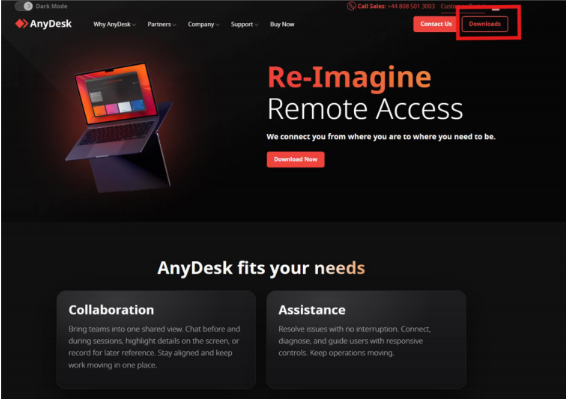
- Go to anydesk.com/en.
- Click Download to start the download, as shown below.
- Once downloaded, open the AnyDesk application.
02
Share your address
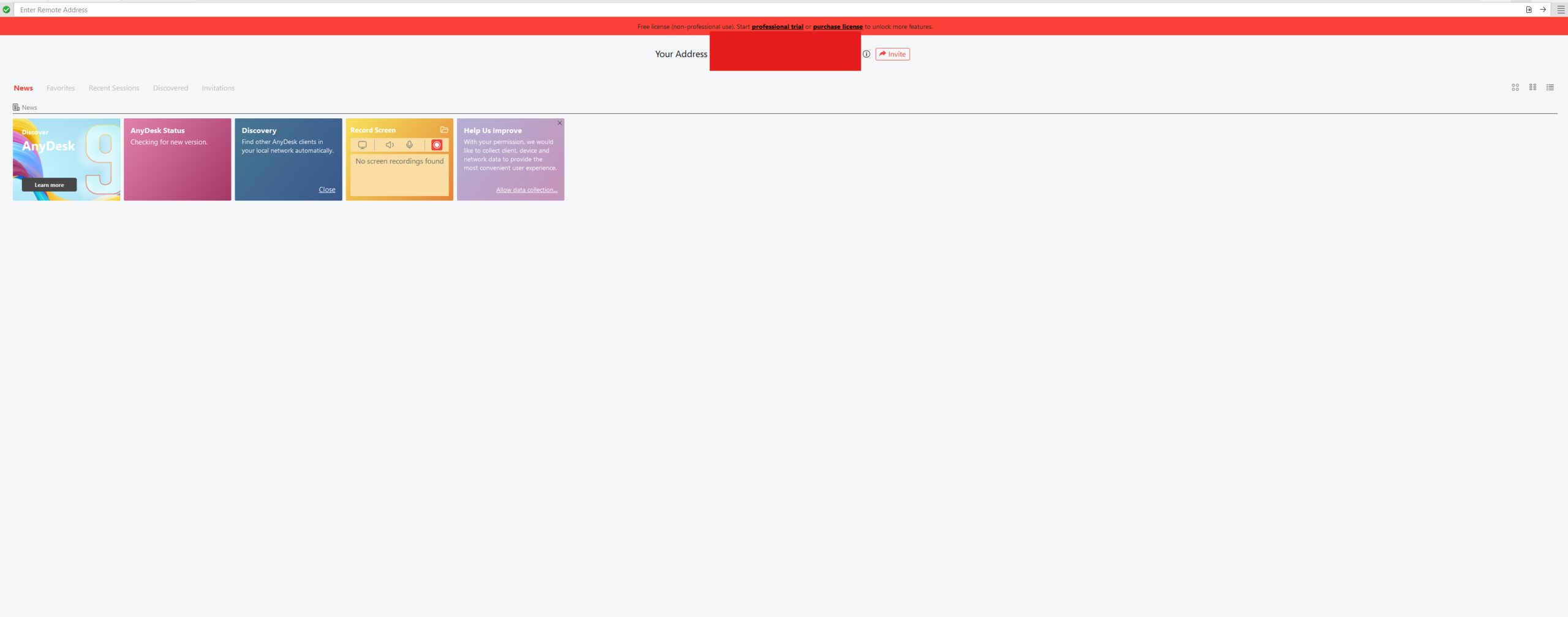
- AnyDesk shows Your Address, a 9-digit code (in the red box below).
- Read this code out to our engineer, or send it through your support ticket as instructed.
- This lets the engineer request a connection. It does not give them access yet.
03
Accept the connection request
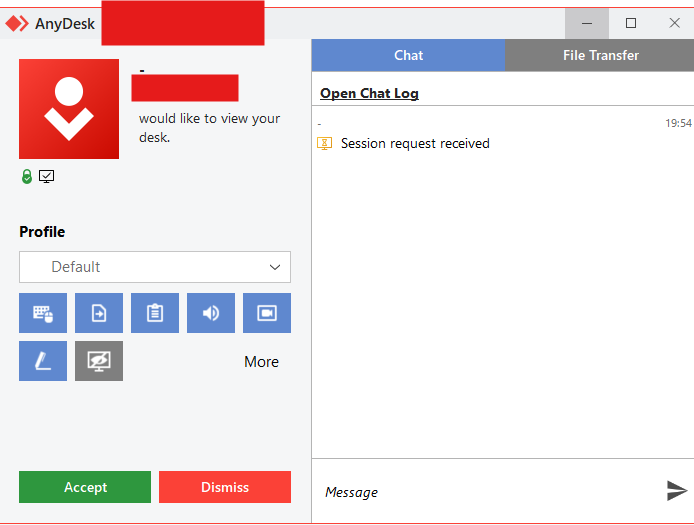
- A pop-up appears asking to view your desk.
- Click Accept.
04
Grant full access Optional
- Only needed if you’d like our engineer to make changes on your device directly.
- Open the Profile dropdown (set to “Default”).
- Select Full Access.
- This lets the engineer control your device so they can diagnose and fix the issue for you.
You can simply share your screen instead if you prefer. Full access lets our engineers work faster, because they can make changes directly rather than guiding you step by step.
05
During the session
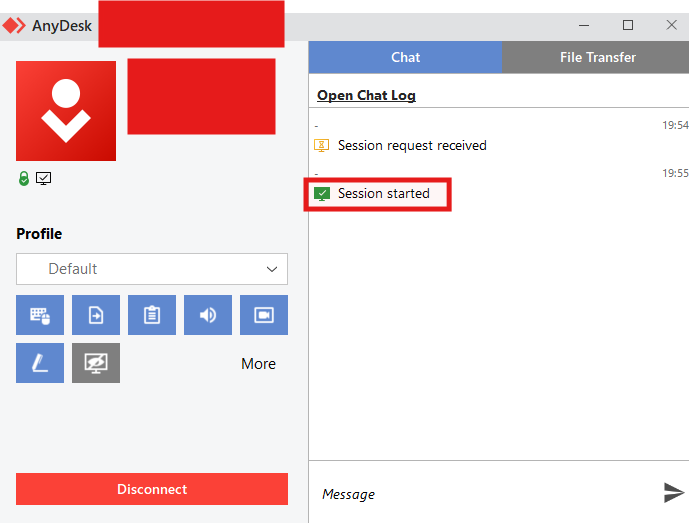
- You’ll see the session marked as Connected, with a live timer.
- You can end the session at any time by clicking Disconnect.
A note on security. Only share your AnyDesk code with a verified engineer from our team. You stay in control throughout the session, and closing AnyDesk at any time ends it immediately. Before any session you’ll complete our consent form, as explained in our terms and privacy policy.
Got a problem right now?
Tell us what's happening and we'll pick it up.